Completing Payroll in QuickBooks 2014

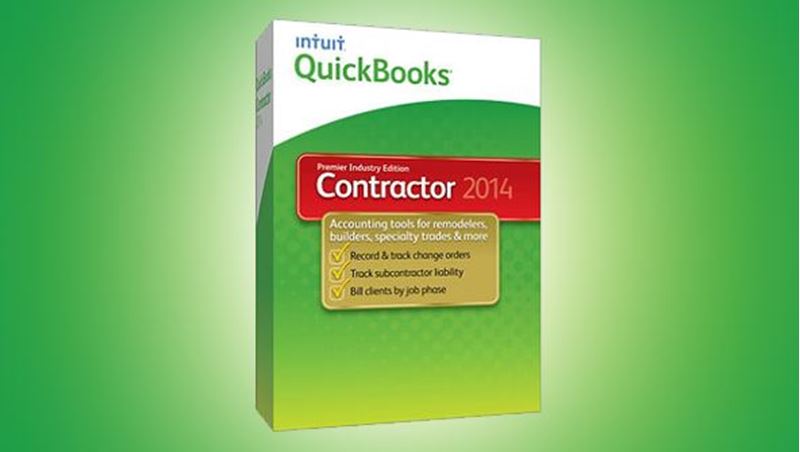
Picture of Completing Payroll in QuickBooks 2014
Quick Facts
  • Delivery Method Online
  • Professional Certificate
  • 24hrs Suggested Study Time
  • 3 Months Access
  • Tutor Support
  • Study On Any Device
  • 142 Students

Learn how to use QuickBooks 2014 to create paychecks, pay taxes, generate forms, and produce dazzling reports.

Preparing payroll in any small business can be a daunting task. Whether you have one employee or 20, the federal and state requirements are often the same! However, by using the payroll feature in QuickBooks 2014, you can master efficient techniques for creating paychecks, paying taxes, and generating forms and reports quickly and easily.

You'll start by learning how to prepare for the payroll process by finding the information you need on the Internal Revenue Service website, from the details of complying with withholding requirements for taxes to the process for applying for an employer identification number.

Then you'll review all aspects of how to set up and maintain payroll information for your employees in Quickbooks. You'll learn how to track work and vacation time; produce job costing reports; generate W-2, W-3, and 1099 forms; create paychecks; and much more. And once you've mastered the basics, you'll gain troubleshooting tips and solutions to help you solve common problems and mistakes to simplify the whole payroll process. By the end of the course, you'll be ready to process payroll in QuickBooks and solve many of the problems that can pop up along the way.

.

Courses are delivered to you through expertly executed lessons, online instruction and interaction with like-minded students. Our courses are designed to deliver all of the benefits of studying in a classroom whilst giving you the flexibility to study at a time and place to suit your needs. You can access your classroom 24/7 from any device with an internet connection.

This course has a 3 month duration. You'll complete comprehensive lessons, quizzes and assignments before submitting your final exam at the end of the course to achieve your certificate. Courses must be completed within the 3 month access period.

The payroll process is much more than just printing paychecks. In fact, before you even attempt to process payroll in QuickBooks, you need to have a good understanding of tax withholding requirements and reporting deadlines, among other things. In this first lesson, you'll learn where to find the information you need to comply with both federal and state payroll requirements, how to apply for an Employer Identification Number (EIN), and how to use government websites to get answers to any payroll questions. You'll even find out how to properly classify workers as employees or independent contractors.

One of the key advantages of processing payroll in QuickBooks is that the program automatically calculates and fills in federal and state tax withholdings on each paycheck. Subscribing to one of Intuit's payroll services ensures that you always have the most up-to-date tables and forms. In this lesson, we'll identify the differences between Intuit's payroll services so that you can choose the best payroll service for your situation. Also, we'll talk about the support resources available from both Intuit's website and other professionals who use the product.

<P>In this lesson, we'll go through a checklist of the information you'll need to gather and enter into your QuickBooks file before creating paychecks for your employees. You'll also learn how to utilize the <I>Payroll Preferences</I> feature in QuickBooks to customize the program to your business situation. Finally, we'll go over why <I>Payroll Items</I> are so important to QuickBooks and how you can use these items to track every paycheck addition or deduction. </P>

Making a simple mistake, like entering an incorrect allowance for an employee's federal tax withholding, will result in an incorrect paycheck. In this lesson, you'll learn how to avoid these kinds of mistakes by carefully entering your employees' information from the paperwork you gathered in the previous three lessons. We'll walk through how to enter personal information, such as addresses, phone numbers, and Social Security numbers. Finally, you'll find out how to create defined fields and enter tax withholding amounts and employee sick and vacation time.

If you decide to start producing paychecks in QuickBooks midyear, you'll need to enter some year-to-date information to let QuickBooks know what payroll transactions have transpired since the beginning of the year. Today, you'll learn about entering year-to-date payroll information and using the QuickBooks year-to-date wizard to summarize each employee's information. In addition, you'll find out how to summarize and enter the tax liabilities you already paid earlier in the year and how to generate certain payroll reports to check your data entry.

If you have employees who are assigned to work on specific projects and you need to track how much time they spend on those projects, then QuickBooks has some options for you. In this lesson, you'll discover how to enter and track employee time in QuickBooks. You'll see how to enter employee time using either the Stopwatch, Timer program, or the Weekly/Single Activity Timesheets. Depending on your situation, one of these methods will be most effective for entering and reporting employee time data. You'll also learn how to assign employee time to the jobs you've created in QuickBooks so that you can produce valuable job costing reports.

Now that you've completed the payroll setup process, today you'll learn how to create a new paycheck for an employee using a Payroll Schedule. We'll also discuss how to create paychecks using information entered on a time activity form, and how to review, correct, and, if necessary, void or delete a paycheck. And if you have to provide paper copies of a paycheck or pay stub, you'll find out how to review them for accuracy and then print them.

Every company that has employees is responsible for certain payroll liabilities. Luckily, QuickBooks has a Scheduled Payments feature that allows you to create reminders of when to pay these liabilities, and that's what we'll explore today. You'll learn how to e-file liability checks and create printed liability checks that include assessed penalties. Since you don't always pay Payroll liabilities to governmental agencies, you'll also find out how to use the payroll feature to track and pay other payroll items, such as health insurance premiums and 401(k) contributions. By the end of this lesson, you'll understand how to adjust the balances due for each payroll tax item and record a refund of payroll taxes.

No payroll process is complete until you've created paychecks and paid tax liabilities. Along with paying your liabilities, you must prepare and file important quarterly and annual reports with the government. To get a handle on this crucial responsibility, today you'll learn QuickBooks' easy-to-follow steps for generating and revising Federal Forms 941 and 940. And to make sure your information is accurate, we'll cover how to review your entries and compare them to the payroll data in your QuickBooks company file.

In this lesson, we'll explore one of the more powerful features of the payroll process in QuickBooks: the reporting feature. After completing this lesson, you'll know how to access and generate several of the preformatted payroll reports in QuickBooks. To help you avoid costly errors, you'll learn how to use these reports to review payroll data, identify errors, and even forecast future payroll obligations.

Benjamin Franklin once said, "In this world nothing can be said to be certain, except death and taxes." That saying still holds true! So to help you with the inevitable task of paying taxes, QuickBooks gives you the ability to generate Forms W-2 and W-3. The government requires employers to submit these summary reports to each employee and to the Social Security Administration. You'll also need to submit Forms 1099 to your independent contractors. In this lesson, not only will you see how to create these forms, but also you'll discover the best methods for reviewing them and making any necessary adjustments. Finally, we'll cover how to properly align the forms so that the payroll information shows up in the right places when you print them.

We'll spend our last lesson helping you avoid and correct the most common mistakes QuickBooks users make when processing payroll. For instance, you'll learn what to do if too many payroll accounts were created in the Chart of Accounts. You'll also find out what steps to take if you didn't use the Scheduled Payments or Pay Liabilities windows correctly. We'll even cover the proper way to enter and track employee loans. At the end of the day, you'll be ready to process payroll in QuickBooks and solve many of the problems that can pop up along the way.

Scott Paxton

Scott Paxton

Scott Paxton is a Certified Public Accountant, and his background includes experience as a public accountant, a manager in the banking industry, an entrepreneur, and a college business instructor. He is a Certified QuickBooks Professional Advisor ... Read more

Read Scott Paxton's Profile

Frequently Asked Questions

Once you've made the payment, we'll send you a confirmation email with a link to start your course. Feel free to get started whenever you're ready!

You'll have 3 months access to your course. In that time you are free to study at your own pace. The course duration is 24 hours.

Online learning is a flexible way to study that fits around your schedule, giving you the freedom to learn at your own pace from anywhere in the world. You'll have 3 months to complete the course and can take the multiple-choice questions and final exam whenever it suits you.

If you need help, you can contact us anytime. You can also join the discussion area where you can interact with other students. The discussion area for each lesson is open for the entire duration of the course.

Of course! We offer a 7-day money back guarantee. As long as you haven't completed the course, you can get a full refund within 7 days of enrolling.

We do not offer extensions or transfers for this self-paced course. However, you will have 3 months to complete the course, and if you need to cancel within the first 10 days of enrolment, we offer a money back guarantee.

The Learning Environment

From the moment that you enrol in the Completing Payroll in QuickBooks 2014 you will become an integral part of our learning community. You'll find yourself with the freedom to learn at a speed that suits you, on any device, from anywhere in the world. Achieving your career goals no longer has to mean compromising family and work commitments.

Our Values

Learn At Your Own Pace

We believe in personalised learning. That's why we provide all the tools and support you need to succeed at your own pace. With flexible learning, you'll stay motivated and retain more information. Plus, you can balance your studies with work and family commitments to make your dreams a reality.

We Won't Break The Bank

Education should be accessible to anyone who wants to learn. That's why we offer some of the most competitive prices in the industry with payments plans for just $25 per week. Investing in your future is a smart choice and doesn’t have to break the bank.

Industry-Led Courses

There's no better way to learn than from experts with years of experience in your field. That's why each of our 200+ industry-led courses are designed to give you a real-life perspective on your industry. With our expert mentors, you'll learn from people who have a wealth of knowledge and experience, and who are passionate about sharing it with you.

Get The Personal Support You Deserve

At Vibe Learning, we're real people who are dedicated to providing you with personal support every step of the way. Our industry experts are not only professional and knowledgeable but also incredibly passionate about sharing their expertise with you. With their guidance, you'll gain invaluable insights and practical knowledge to help you succeed.

Microsoft Excel 2007 for Teachers Online Course | Vibe Learning
 

Microsoft Excel 2007 for Teachers

Picture of Microsoft Excel 2007 for Teachers
Quick Facts
  • Delivery Method Online
  • Professional Certificate
  • 24hrs Suggested Study Time
  • 3 Months Access
  • Tutor Support
  • Study On Any Device
  • 965 Students

Learn the basics of Microsoft Excel 2007 in this professional development course for teachers, and get the training every teacher needs for using and teaching this powerful program effectively in the classroom.

Learn the basics of Microsoft Excel 2007 in this professional development course for teachers, and get the training every teacher needs for using and teaching this powerful program effectively in the classroom. This unique online workshop is packed full of tips, shortcuts, and lesson plan ideas.

First, we'll cover all the important Excel fundamentals: Using tabs, formatting cells and worksheets, inserting formulas for addition, subtraction, multiplication, and division, and creating colorful charts and graphs. Then we'll move on to more advanced Excel features such as sorting and analysing student test data for differentiated instruction, writing powerful mathematical formulas, and using Excel to automatically calculate student averages and other statistics. You'll finish the course by creating a customisable grade book that you can use in your own classroom.

Throughout the course, we'll explore standards-based lesson plans and activities that allow you to pass your Excel knowledge on to your students, no matter what grade level you teach. By the end, you'll have a solid understanding of Excel, and a wealth of ideas for integrating this technology into your lesson plans across your curriculum.

Courses are delivered to you through expertly executed lessons, online instruction and interaction with like-minded students. Our courses are designed to deliver all of the benefits of studying in a classroom whilst giving you the flexibility to study at a time and place to suit your needs. You can access your classroom 24/7 from any device with an internet connection.

This course has a 3 month duration. You'll complete comprehensive lessons, quizzes and assignments before submitting your final exam at the end of the course to achieve your certificate. Courses must be completed within the 3 month access period.

Before you teach your students to use Excel, you'll need to learn the basics of this great program. So we'll start off our first lesson by going over some of the terms that are most commonly used in Excel, and then we'll take a tour through the various features of an Excel workbook to get you acquainted with the look and feel of the application and how you can use it in the classroom. You'll learn easy ways to move your cell pointer around within the Excel workspace, as well as a few keyboard shortcuts that will help you move to where the action is a little more quickly. At the end of this first lesson, you'll get to try your hand at creating your first Excel formula.

In this lesson, you're going to create your first worksheet—a skill that you can teach in your own classroom! We'll start by going over the five steps you'll need to follow to create a worksheet in Excel: Stating your objective, adding labels, adding numbers, adding formulas, and changing the overall look of the worksheet using predesigned templates. We'll also begin our ongoing discussion about ways you can use Excel in your classroom to improve student learning across your curriculum.

In today's lesson, you'll learn some valuable techniques that will help you save a lot of time in the classroom while using Excel. The first and the best technique is called Auto Fill, and I know you're going to get a lot of use out of it! Excel's Auto Fill allows you to enter a series of numbers, dates, or other values into your worksheets as quickly as you can click and drag your mouse. We'll practice using it to enter some of Excel's standard lists like months of the year and days of the week. Then we'll go over how to create custom Auto Fill lists to help you enter text that you need to enter often—like your classroom roster or athletic team roster. After that, we'll go over some of Excel's advanced formatting options to make your numbers appear as currency, percents, or carried out to various decimal places.

A picture is worth a thousand words, and when it comes to worksheets full of complex data calculations, that old saying is even more true. In this lesson, you'll learn how to use Excel's charting features to display the data you've entered in colorful charts that give meaning to your numbers. After we take a look at a few of Excel's many chart styles, we'll practice adding defining information to your charts, such as titles, data labels, and legends. Then we'll go over how to customize the colors of your chart. We'll finish with a discussion on the many ways you can use charting and graphing tools across your curriculum.

In this, the second lesson in our two-part discussion on Excel's charting capabilities, we'll go over advanced charting techniques. You'll learn how to change chart types, add text, add shapes, and even add your own pictures to your charts. Then you'll find out how to add lines, arrows, and other helpful graphic features to your charts. And, as with most lessons in this course, I'll give you more lesson plan ideas that you can use to bring these Excel techniques into your own classroom.

Today we're going to take a break from the step-by-step Excel instruction to visualize how it will look when you begin using this valuable program in your own classroom, no matter what grade level you teach. We're going to review three teacher-created lesson plans for grades 1-4, 5-8, and 9-12, and then talk about ways you can adjust these lesson plans for different age groups, different content areas, and different learning styles and needs.

In today's lesson, you'll find out how to turn any old worksheet into a database. Because once you're working with a database, you'll gain access to one of Excel's most helpful features. You'll be able to easily locate, organize, and summarize the information you need. We'll practice using a sample database, and then we'll explore Excel's AutoFilter, AutoSum, and Sort features. With these tools, you'll be able to quickly sort and group your students for differentiated instruction.

In this lesson, you'll learn about the three different types of cell references that you can incorporate into a formula, and I'll explain when you should use each one. This is great information if you plan to use Excel to help you maintain a budget for your classroom, or if you're teaching a lesson on money and budgets!

Now that you know all the ins and outs of creating one worksheet, it's time to really organize your classroom! Today, you're going to learn how to use sheet references to create three-dimensional workbooks, linking different worksheets so that the linked information updates automatically. This can be really helpful if you want to create monthly or quarterly grade books, and then compile all that information into one end-of-year grade summary for each of your students. We'll also discuss ways you can use linked workbooks in cooperative learning projects with your students.

Remember statistics class in high school? It wasn't the easiest class, but now that you're a teacher, you know how important statistics are when you're trying to evaluate your students' assessment scores. If you need to demonstrate and report student progress, this lesson is for you. Today we're going to go over the basics of statistics in Excel. You'll learn how to use functions to simplify the process of calculating averages, deviations, minimums, maximums, modes, and more. We'll also discuss how these tools can help you target your students' strengths and areas of need.

Today's lesson is all about saving you time. We'll go over how to use macros to automate all your tedious tasks in Excel, and then I'll show you how to build a macro of your very own. You'll also learn how to add time-saving buttons to the toolbars at the top of your screen. And we'll talk about ways you can customize those toolbars to better meet your needs.

In our final lesson, we'll put everything you've learned together into one final project—an electronic grade book that you can use in your own classroom! Even if you already have one, you'll want to follow along to see what's going on behind the scenes in Excel. Plus, when we build this grade book, you'll have the chance to customize it for your own needs while reviewing most of the skills you've learned throughout the course. And I'll show you a few new skills, too. For instance, you'll learn how to create a formula that will assign each student a letter grade based on test or assessment averages. And then you'll learn how to apply conditional formatting to color-code your student lists according to those averages. This is a great skill to know if you like to separate your class into different reading, math, or other groups! Finally, you'll learn how to create and print charts and graphs based on your grade book data.

Robin Sellers

Robin Sellers

Robin Sellers is a certified teacher with a Master of Arts degree with a concentration in Technical and Professional Communication. She has over 11 years of experience in the traditional classroom and has been an online instructor since 2000, trai... Read more

Read Robin Sellers's Profile

Frequently Asked Questions

Once you've made the payment, we'll send you a confirmation email with a link to start your course. Feel free to get started whenever you're ready!

You'll have 3 months access to your course. In that time you are free to study at your own pace. The course duration is 24 hours.

Online learning is a flexible way to study that fits around your schedule, giving you the freedom to learn at your own pace from anywhere in the world. You'll have 3 months to complete the course and can take the multiple-choice questions and final exam whenever it suits you.

If you need help, you can contact us anytime. You can also join the discussion area where you can interact with other students. The discussion area for each lesson is open for the entire duration of the course.

Of course! We offer a 7-day money back guarantee. As long as you haven't completed the course, you can get a full refund within 7 days of enrolling.

We do not offer extensions or transfers for this self-paced course. However, you will have 3 months to complete the course, and if you need to cancel within the first 10 days of enrolment, we offer a money back guarantee.

The Learning Environment

From the moment that you enrol in the Microsoft Excel 2007 for Teachers you will become an integral part of our learning community. You'll find yourself with the freedom to learn at a speed that suits you, on any device, from anywhere in the world. Achieving your career goals no longer has to mean compromising family and work commitments.

Our Values

Learn At Your Own Pace

We believe in personalised learning. That's why we provide all the tools and support you need to succeed at your own pace. With flexible learning, you'll stay motivated and retain more information. Plus, you can balance your studies with work and family commitments to make your dreams a reality.

We Won't Break The Bank

Education should be accessible to anyone who wants to learn. That's why we offer some of the most competitive prices in the industry with payments plans for just $25 per week. Investing in your future is a smart choice and doesn’t have to break the bank.

Industry-Led Courses

There's no better way to learn than from experts with years of experience in your field. That's why each of our 200+ industry-led courses are designed to give you a real-life perspective on your industry. With our expert mentors, you'll learn from people who have a wealth of knowledge and experience, and who are passionate about sharing it with you.

Get The Personal Support You Deserve

At Vibe Learning, we're real people who are dedicated to providing you with personal support every step of the way. Our industry experts are not only professional and knowledgeable but also incredibly passionate about sharing their expertise with you. With their guidance, you'll gain invaluable insights and practical knowledge to help you succeed.

QuickBooks for Contractors 2014 Online Course | Vibe Learning
 

QuickBooks for Contractors 2014

Picture of QuickBooks for Contractors 2014
Quick Facts
  • Delivery Method Online
  • Professional Certificate
  • 24hrs Suggested Study Time
  • 3 Months Access
  • Tutor Support
  • Study On Any Device
  • 23 Students

Learn how to use the Premier Contractor Edition of QuickBooks 2014 for your construction business to create contract estimates, perform time tracking and job costing, generate powerful reports, and much more.

Contractors have many unique bookkeeping needs, so we've designed this course from the ground up specifically for the construction industry.

In this self-pacedcourse, you'll learn how to use the Premier Contractor Edition of QuickBooks 2014 to run your business more efficiently. Lessons are clearly illustrated and include easy-to-follow, step-by-step instructions to give you hands-on practice with the features that you're sure to use every day. You'll discover how to create custom, professional-looking contract estimates and track time and materials, and you'll learn the different methods you can use to bill your clients, including how to use the QuickBooks progress invoicing and job-costing features.

You'll find out how to deal with tricky situations, like change orders and retainage requirements, and you'll learn how to properly set up accounts, items, customers, and jobs. All along the way, you'll learn how to avoid many of the big and often costly mistakes contractors commonly make with QuickBooks. Finally, you'll learn how specific transactions impact all your accounts, and even some techniques to protect your business from fraud, prepare for tax time, and generate useful and dynamic reports.

Courses are delivered to you through expertly executed lessons, online instruction and interaction with like-minded students. Our courses are designed to deliver all of the benefits of studying in a classroom whilst giving you the flexibility to study at a time and place to suit your needs. You can access your classroom 24/7 from any device with an internet connection.

This course has a 3 month duration. You'll complete comprehensive lessons, quizzes and assignments before submitting your final exam at the end of the course to achieve your certificate. Courses must be completed within the 3 month access period.

Contracting businesses have many unique accounting and reporting needs. In this first lesson, you'll learn how to set and edit your general, accounting, tax, and time-tracking preferences to fit your particular company. We'll go on a brief tour of the QuickBooks 2014 Contractor Edition, and you'll learn how to create and manage company files and utilize the program's multiuser and mobility features.

In this lesson, you'll learn the QuickBooks basics, like how to create and edit accounts in your company file. Then you'll see how you can modify company templates (estimates and invoices, for example) to track all kinds of valuable information. And you'll find out how working backward from certain reports can be the overriding factor in defining your file setup. Because not all contractors are the same, we'll also go over some of the major setup differences between a typical contractor, like a plumber or electrician, and a company that purchases and develops real estate as its main purpose.

Today we'll focus on the Items List, which is an extremely useful tool for contractors. Even though different types of contractors will set up their lists differently, there are some general guidelines you can follow to ensure that your list works effectively and efficiently. We'll also cover some tricks for cleaning up and organizing an existing Item List to better suit your needs.

QuickBooks provides some great tools to assist you in tracking both revenues and expenses for each job you complete, and we'll go over them in today's lesson. Get ready to learn the first steps that will lead you into the estimating and invoicing phases of your business. You'll also find out how to use the Customer:Job List to create and edit Customers and Jobs.

One of the more powerful features that the Contractor Edition offers you is the ability to create project estimates. In this lesson, you'll learn how to create these estimates and transfer the information to an invoice. Next, you'll find out how to handle the different invoicing methods contractors often face, such as time and materials and progress invoicing, and you'll get an opportunity to enter a few sample invoices using the different methods.

Wouldn't it be great if every project progressed exactly as you laid it out in the initial project estimate? Since this is rarely the case, the Contractor Edition gives you a few features to help you easily handle different situations. Today you'll learn the steps you need to follow to enter change orders and retainage. You'll find out how to properly apply customer payments to outstanding invoices. Making errors in applying payments can devastate your bookkeeping records, so we'll also explore some simple techniques you can follow to avoid these common problems.

There are many different methods for paying your bills in QuickBooks. In today's lesson, you'll learn the most basic methods for creating a new vendor and entering a check transaction. In addition, you'll see how you can use purchase order and bill-paying features to better track costs that are more common for contractors (such as materials and subcontractor costs). Finally, we'll take a quick tour through tracking credit card accounts.

Today we'll discuss recording time entries and how you can transfer these entries to other locations in the program, such as invoices. Much like expenditures for materials and supplies, you'll see that you can break time entries down and assign them to a specific job or project. As long as you have the breakdowns available (on a time card, for instance), you'll be able to split the hours that your company spends on multiple jobs on the same day.

In this lesson, we'll focus on the key payroll issues that contractors face. For instance, you'll learn how to create payroll items as part of your job-costing system. We'll also discuss some techniques for filing workers' compensation reports. Finally, you'll gain an understanding of the process you need to follow to create a paycheck and pay your payroll taxes.

The reporting features in the Contractor's Edition of QuickBooks are vast. In this lesson, you'll discover how to locate critical information for your business, and then how to generate some spectacular reports to help you to better manage day-to-day activities. You'll also gain a better understanding of the key financial statements, specifically the balance sheet and profit and loss reports.

We'll begin this lesson with a discussion of some simple but important month-end procedures, like reconciling accounts and printing reports. Next, you'll learn how to perform a few procedures to condense and clean up your accounting file and prepare it for a new year. We'll also cover how to enter and use QuickBooks' powerful budgeting feature.

In our final lesson, we'll go over simple steps you can take to reduce your risks and safeguard your business assets. You'll learn how to set up and restrict users to certain areas of the program, review an Audit Trail report, and set a closing date for the books. We'll explore some basic internal control principles, and you'll find out which reports you should place on your monthly reading list.

Scott Paxton

Scott Paxton

Scott Paxton is a Certified Public Accountant, and his background includes experience as a public accountant, a manager in the banking industry, an entrepreneur, and a college business instructor. He is a Certified QuickBooks Professional Advisor ... Read more

Read Scott Paxton's Profile

Frequently Asked Questions

Once you've made the payment, we'll send you a confirmation email with a link to start your course. Feel free to get started whenever you're ready!

You'll have 3 months access to your course. In that time you are free to study at your own pace. The course duration is 24 hours.

Online learning is a flexible way to study that fits around your schedule, giving you the freedom to learn at your own pace from anywhere in the world. You'll have 3 months to complete the course and can take the multiple-choice questions and final exam whenever it suits you.

If you need help, you can contact us anytime. You can also join the discussion area where you can interact with other students. The discussion area for each lesson is open for the entire duration of the course.

Of course! We offer a 7-day money back guarantee. As long as you haven't completed the course, you can get a full refund within 7 days of enrolling.

We do not offer extensions or transfers for this self-paced course. However, you will have 3 months to complete the course, and if you need to cancel within the first 10 days of enrolment, we offer a money back guarantee.

The Learning Environment

From the moment that you enrol in the QuickBooks for Contractors 2014 you will become an integral part of our learning community. You'll find yourself with the freedom to learn at a speed that suits you, on any device, from anywhere in the world. Achieving your career goals no longer has to mean compromising family and work commitments.

Our Values

Learn At Your Own Pace

We believe in personalised learning. That's why we provide all the tools and support you need to succeed at your own pace. With flexible learning, you'll stay motivated and retain more information. Plus, you can balance your studies with work and family commitments to make your dreams a reality.

We Won't Break The Bank

Education should be accessible to anyone who wants to learn. That's why we offer some of the most competitive prices in the industry with payments plans for just $25 per week. Investing in your future is a smart choice and doesn’t have to break the bank.

Industry-Led Courses

There's no better way to learn than from experts with years of experience in your field. That's why each of our 200+ industry-led courses are designed to give you a real-life perspective on your industry. With our expert mentors, you'll learn from people who have a wealth of knowledge and experience, and who are passionate about sharing it with you.

Get The Personal Support You Deserve

At Vibe Learning, we're real people who are dedicated to providing you with personal support every step of the way. Our industry experts are not only professional and knowledgeable but also incredibly passionate about sharing their expertise with you. With their guidance, you'll gain invaluable insights and practical knowledge to help you succeed.